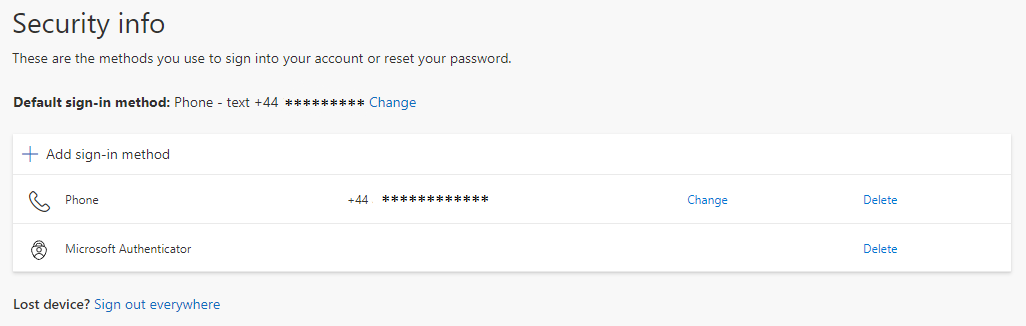
Once IT has enabled your user to require 2-factor authentication, and you have completed the initial 2 Factor Authenication Setup as per Initial Multi-Factor Authentication Setup for End Users . you can choose to setup additonal Verification methods like additonal phones or email verification or the Authenicator App.
- Firstly Open https://aka.ms/MFASetup, and login (& verify) as prompted
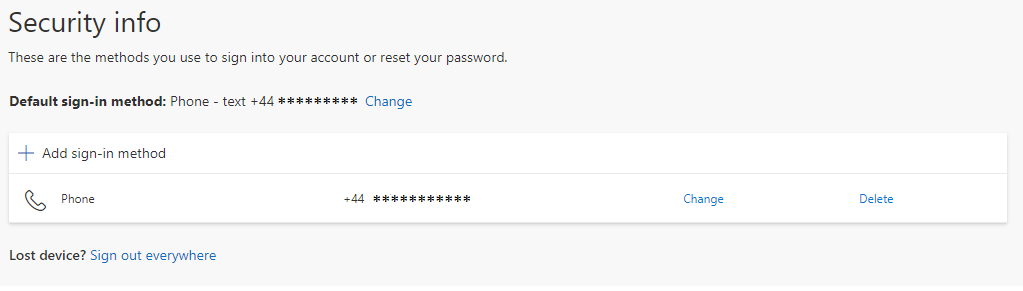
- you should now see a Security Info Page, Click Add Sign-in method.
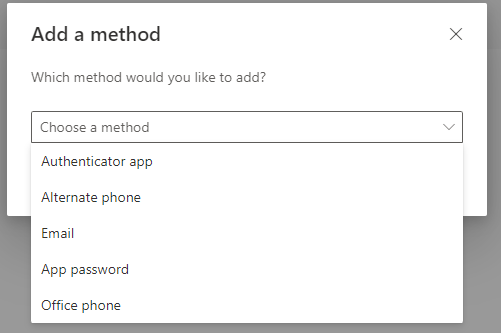
Select Desired Additonal Verification Method from the drop down.
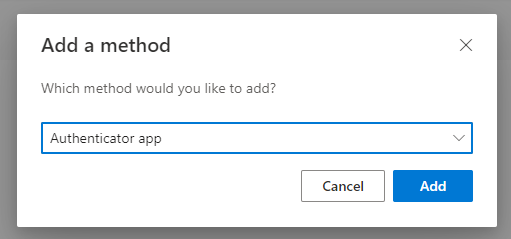
Then Follow the Steps as prompted. We will Show the Setup steps for Microsoft Authenticator.
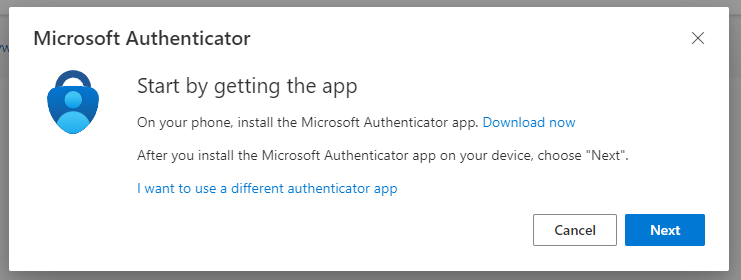
The first step is to install the 'Microsoft Authenticator' App onto your mobile device. you can find it on your device app store, Either Apple App Store or Google Play Store | or visit this link and follow the instructions. https://aka.ms/getMicrosoftAuthenticator
Once you have successfully downloaded the app onto your mobile device, click Next.
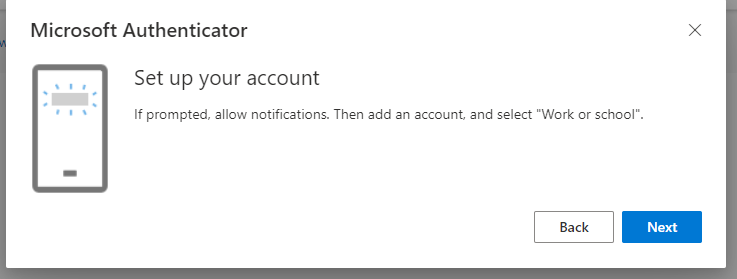
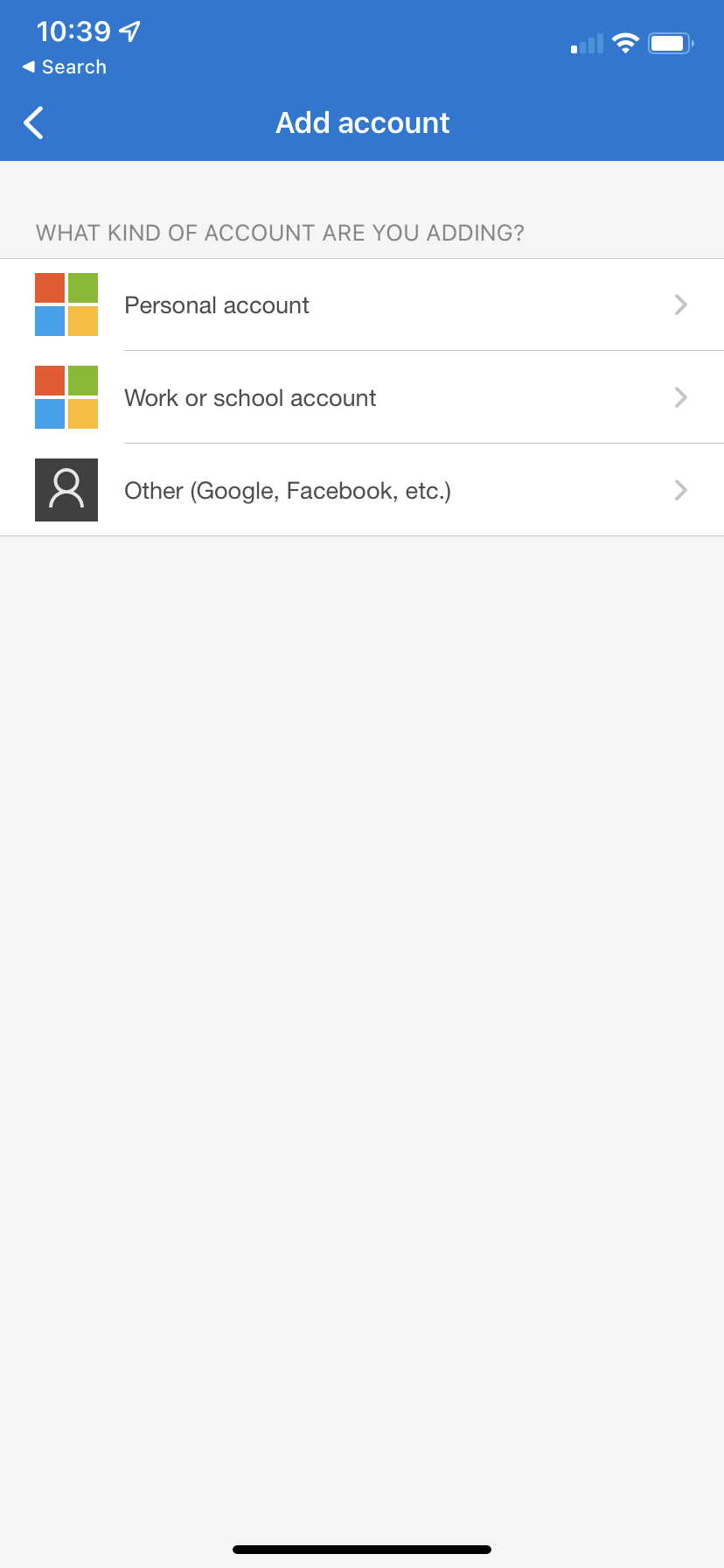
Now on your mobile device Add a new account and select Work or School.
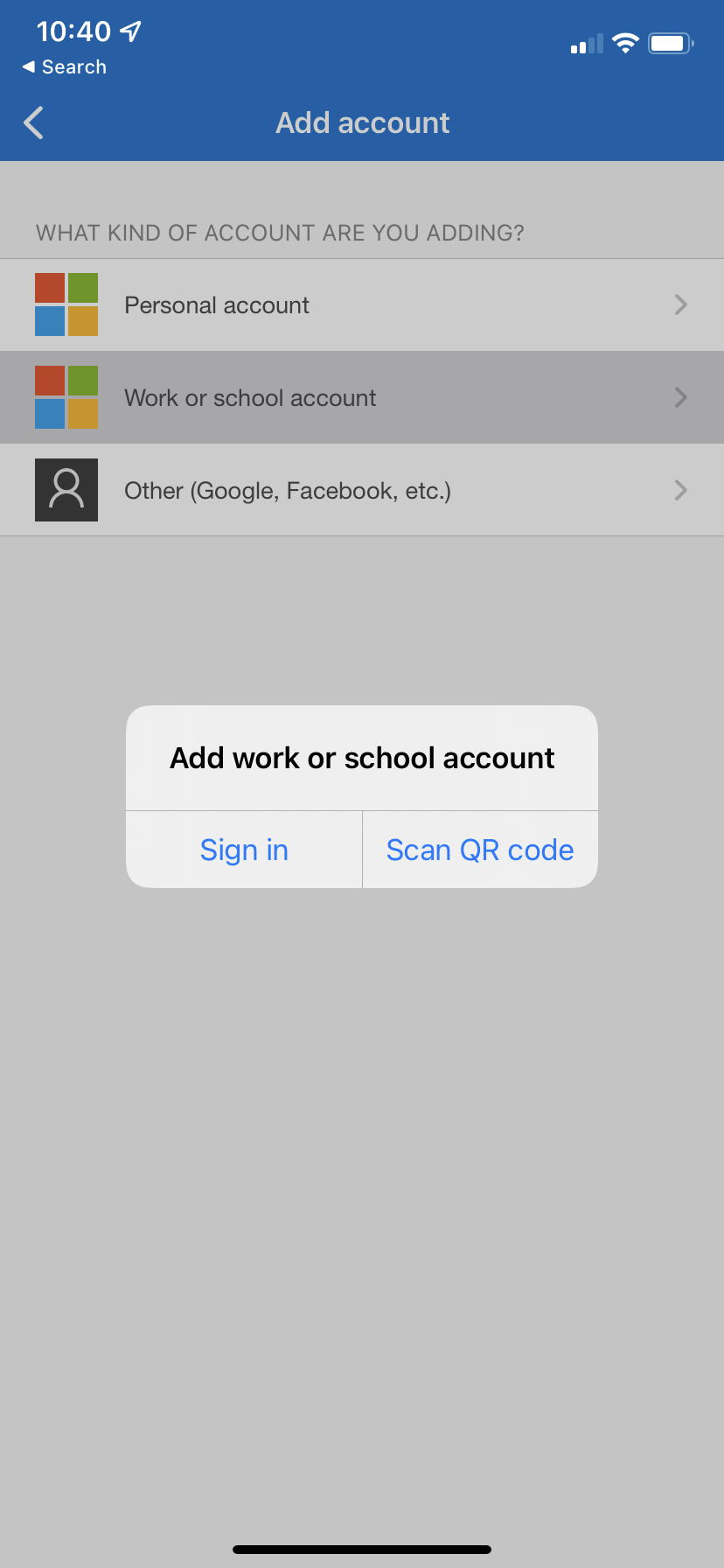
On your mobile device Select Scan QR Code
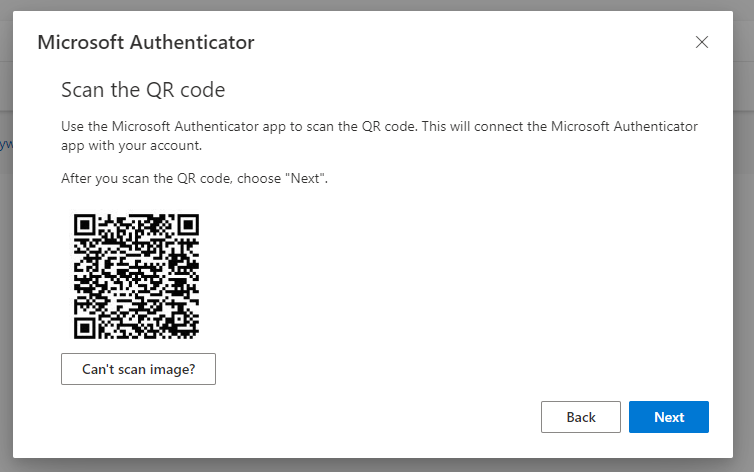
On the Webmail Click Next, and you should be prompted with a screen similar to the below, Hover the mobile device over the QR on the screen.
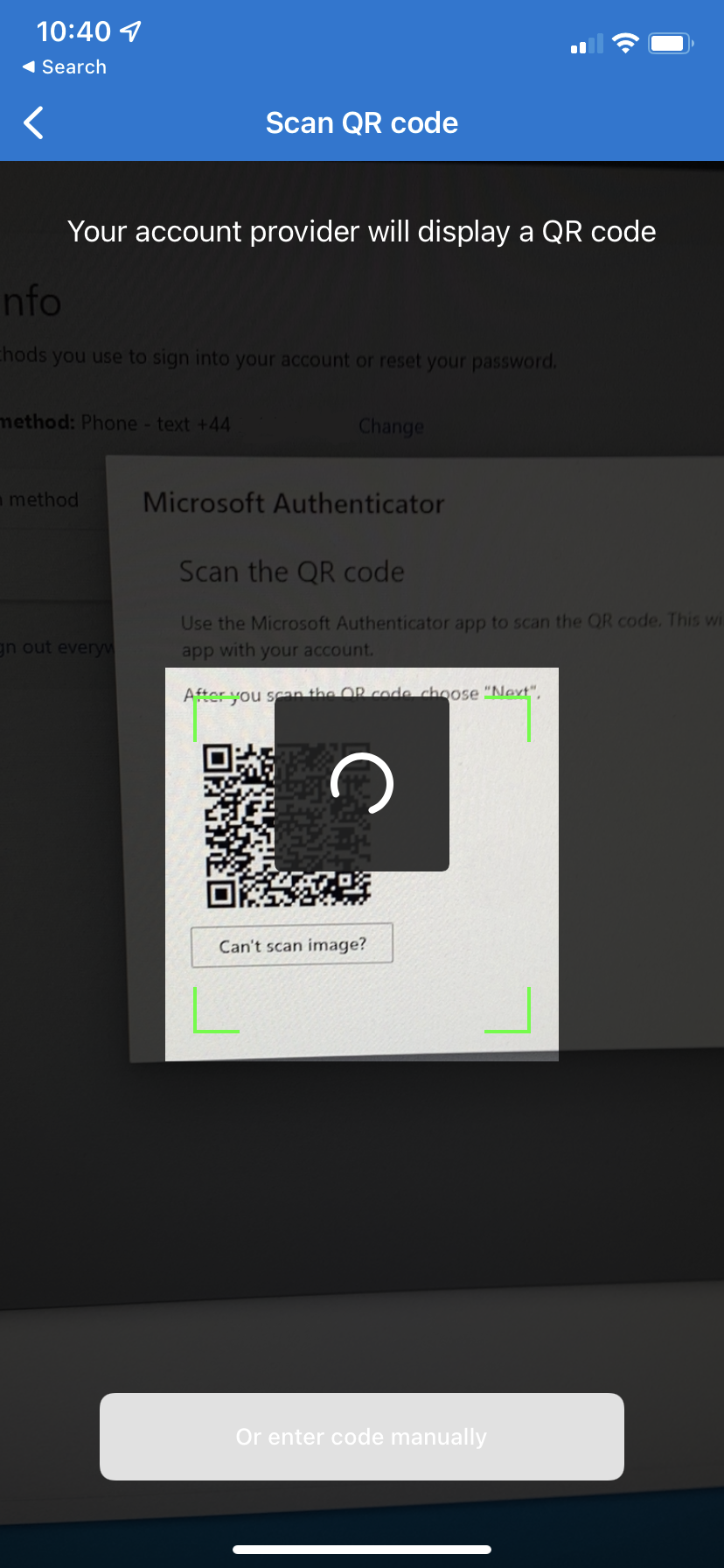
On Your Mobile device the app should now show similar to the below.
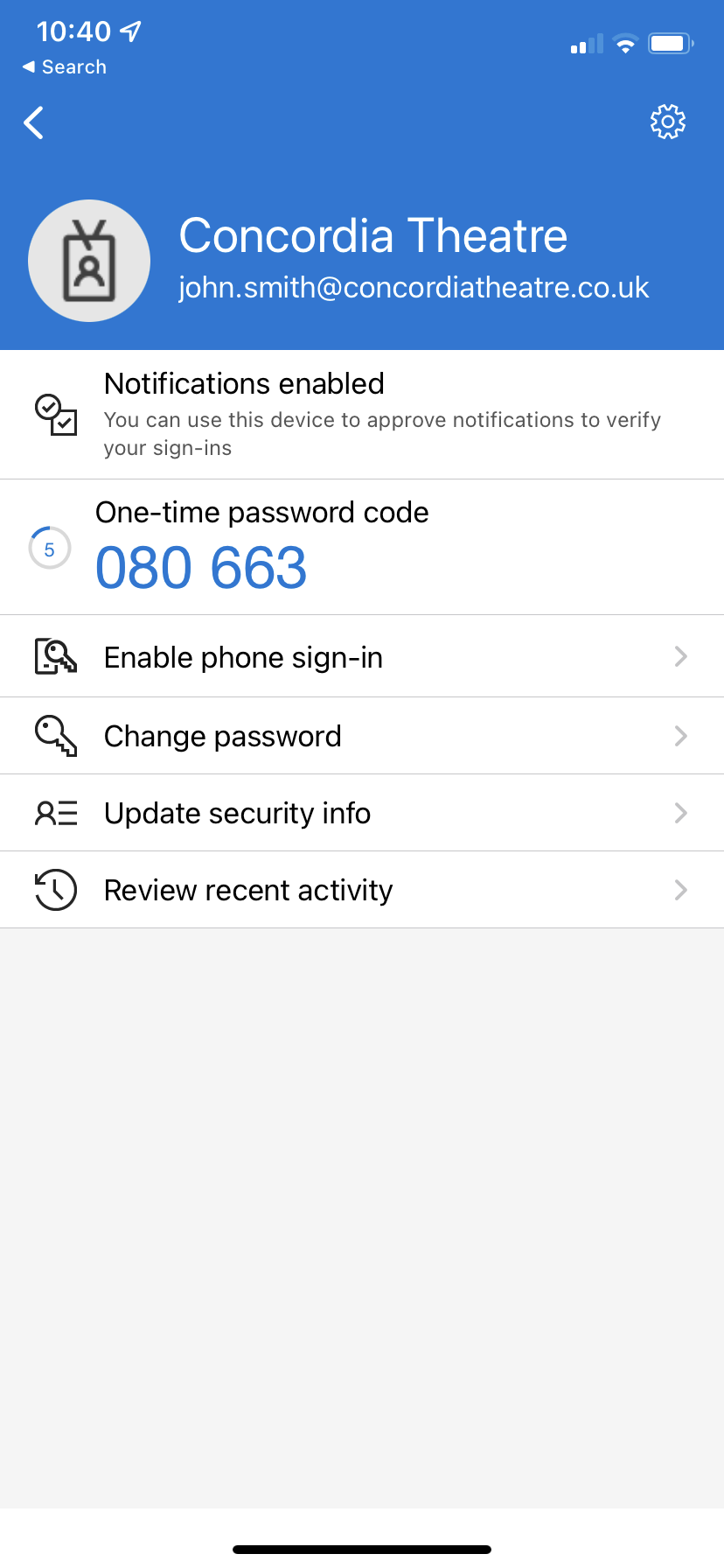 Now on the Webmail Click Next, which should show as such,
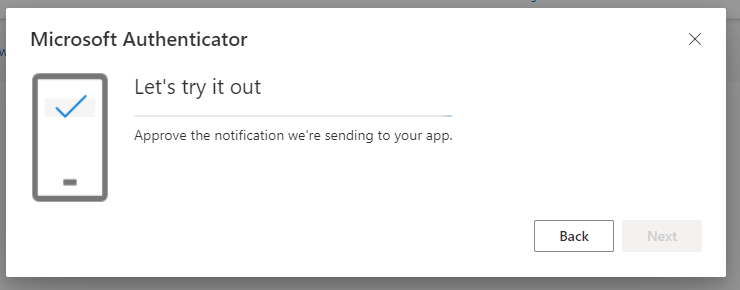
and the mobile device should get a pop up like below.
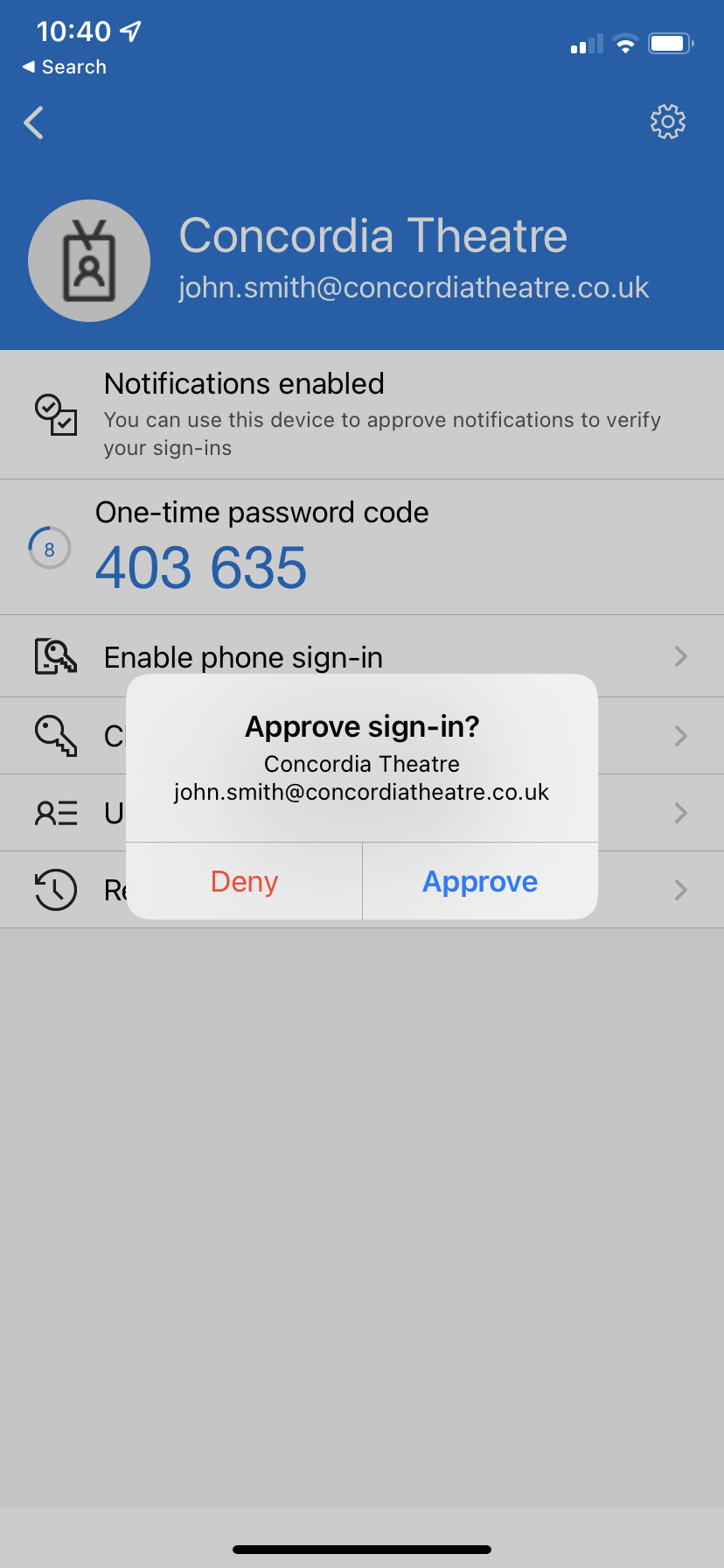
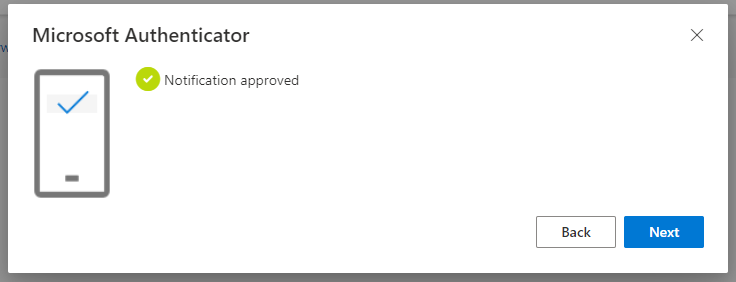
This Click Approve you should see the below-approved notification on Webmail.
Now your Security Info Screen should look similar to this.